 Ice Box
If you have a computer, it's better to set up with the one-click activator or the web activator. The result is exactly the same, and no factory reset is needed.
Setup steps#
- Save the QR code below on another phone or a computer, or print it out, so it's ready to use.
- Factory reset the phone.
- On the setup screen, tap the "Welcome" text 6 or more times in a row. If nothing happens, your system has removed this feature.
- Follow the prompts to connect to WiFi and download the QR code reader, then scan the QR code below. The phone installs and configures Ice Box automatically.

Notes#
- Once set up, it keeps working through reboots and system updates, unless the data is cleared. To uninstall Ice Box, tap "Uninstall" in Ice Box settings.
- After setting up this way, the system doesn't install pre-installed apps by default. That includes all kinds of adware, but also features such as the camera. To get pre-installed apps back, go to "Laboratory" in Ice Box settings, tap "Active Pre-installed System Apps" and choose the apps to install.
- If the phone says it needs to be reset during setup, it's usually because the network was hijacked and Ice Box failed to download.
QR codes for other apps#
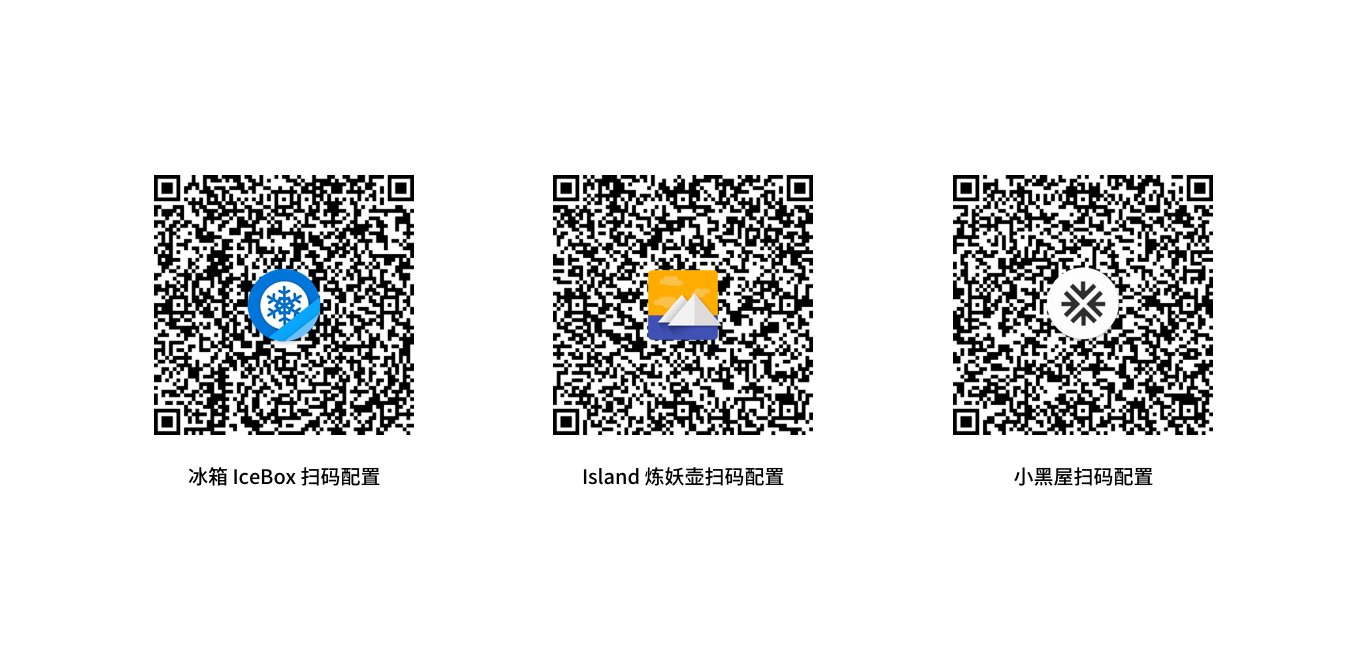
A phone can only have one device owner. If you want to make another app such as Island or BlackHouse (小黑屋) the device owner, scan the matching QR code below.
Still stuck? See the FAQ, or email us with Feedback in Ice Box.